Your consultants switch between go-lives, rollouts and support tickets every week. Dime.Scheduler keeps all of that work in one plan, so you know who is free and which projects need attention.
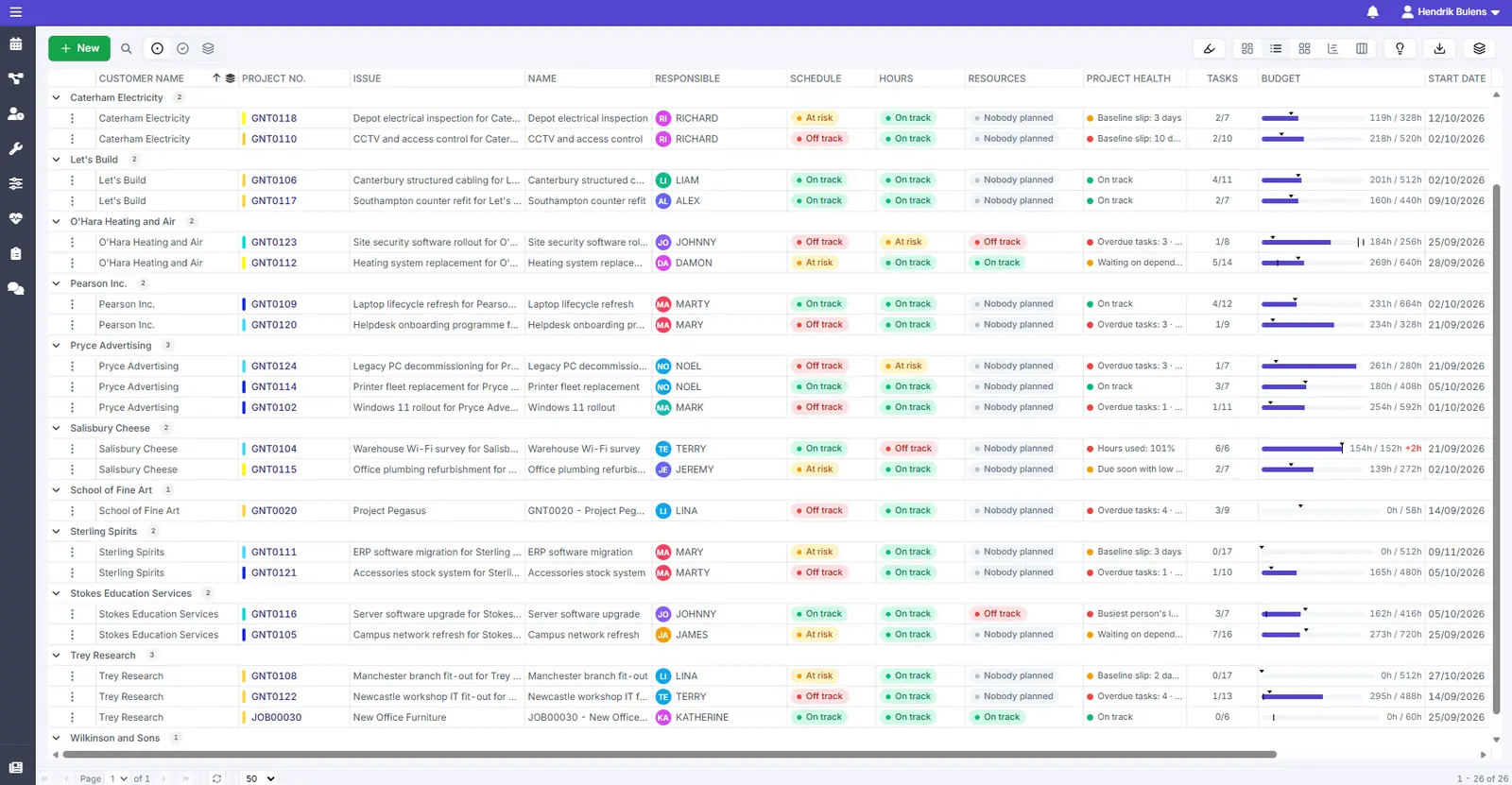
An implementation runs through the same steps every time. Dime.Scheduler keeps each one in view.
Projects, service orders and tickets come in from Business Central, your CRM, the Power Platform or any other system. Planned work and hours go back.
Break the project into phases such as analysis, build, test and go-live. Link the tasks that depend on each other and give each phase an hours budget.
Filter on skills, certifications and availability. Book consultants for project days and support work on the same board.
Consultants log hours against the tasks they worked on. You compare the hours used with progress and see which projects need attention.
Every implementation on one timeline, with the workload of your consultants underneath and the hours used against the hours budget next to it.
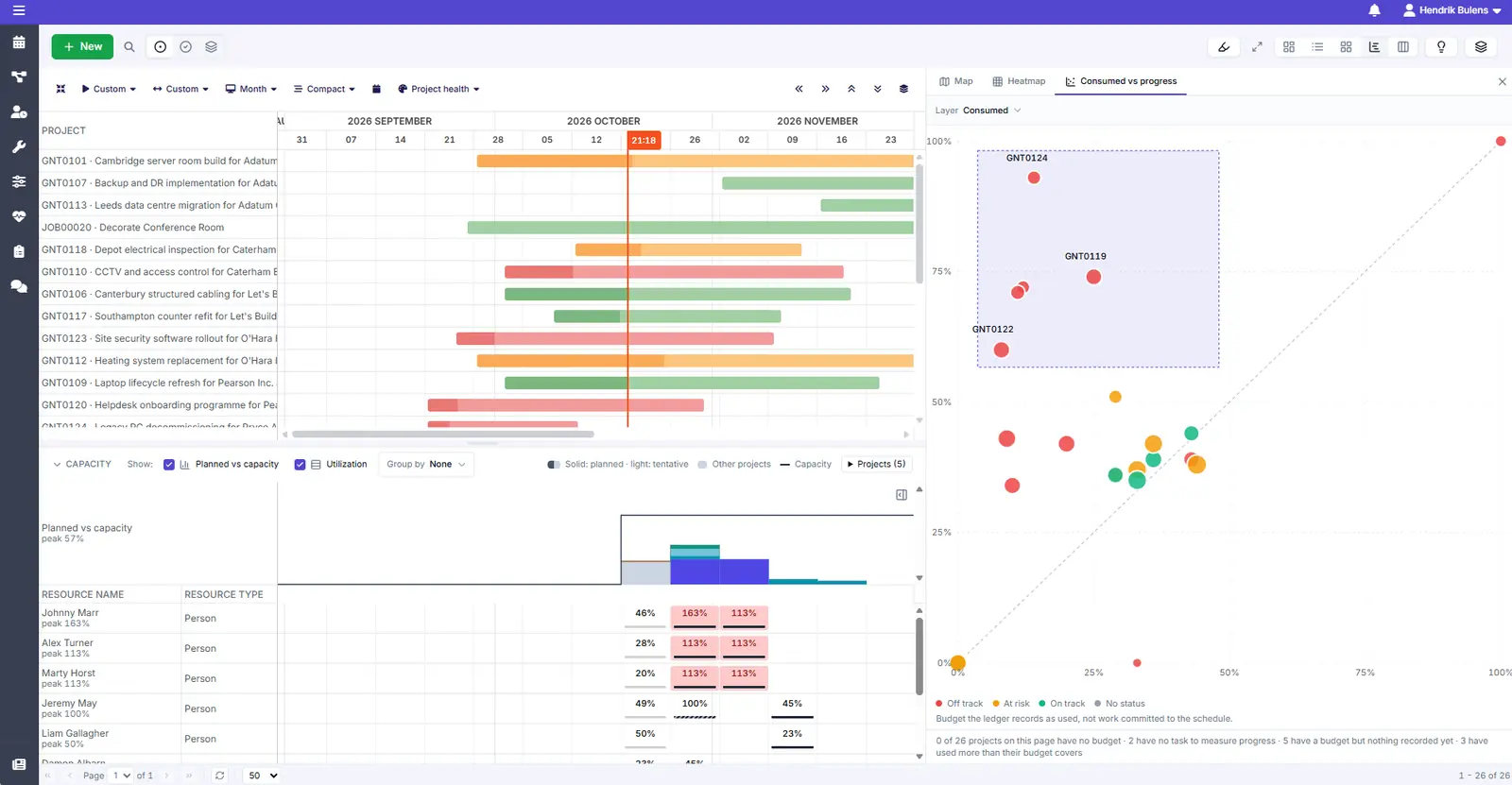
You set the rules for when a project is off track, such as overdue tasks or an hours budget nearly used up. Those projects end up on one list that needs attention.
Compare the hours used with how far each project has come. An implementation that is eating through its hours budget stands out right away.
Look at the same projects on a timeline, in a list, as cards or on a kanban board, with a map in the overview.
Consultants see their own planning and log their hours without chasing.
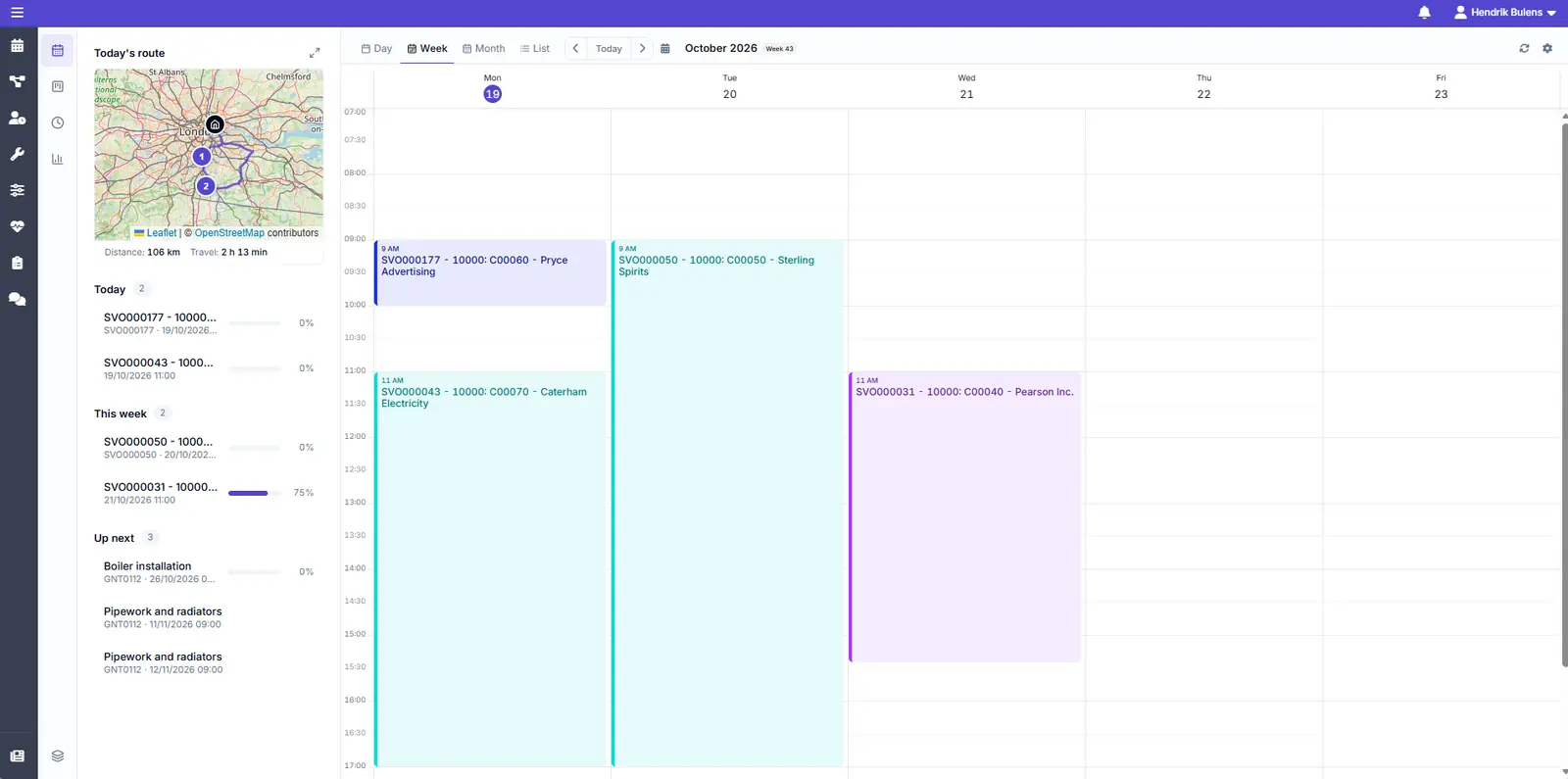
Each consultant sees their project days, support work and tasks for the week in one place.
Drag a task to the next column on the board, and the project manager sees the update.
A timer runs while they work and the timesheet suggests planned and tracked time. It goes to Business Central for approval, and one overview shows who hasn't submitted yet.
Project days and appointments show up in Outlook and stay in sync when plans change.
A go-live does not stop tickets from coming in. Plan both in one place, so a promise to one customer does not break a promise to another.
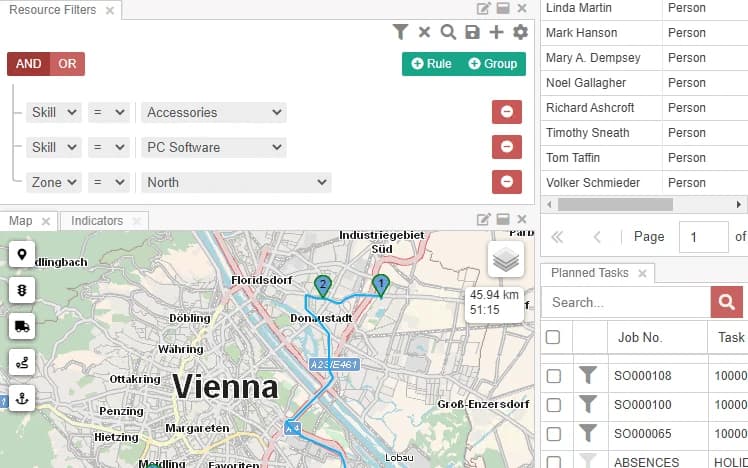
Filter on product knowledge, certifications and availability to find who can take a migration or an urgent ticket.
See each consultant's planned hours next to their availability across all projects, before you agree on a go-live date.
When a consultant has to go to the customer, the map shows travel times and the route for the day.
AntemetA, a French specialist in IT infrastructure, cloud and cybersecurity, tells us how it moved a decade of scheduling habits to Dime.Scheduler without any manual re-entry.
Read AntemetA's entire storyEach part works on the same data, so a change in the plan shows up on the schedule, and the hours logged in the office flow back to Business Central.
Like what you see?
Reach out to our team who will be happy to show Dime.Scheduler in action.
90-day free trial available.
